Access
Voice Link devices, the messaging allowlist, and remote access over Tailscale.
This chapter covers every way something outside the dashboard reaches your agent: a paired voice-link device, an allowlisted messaging user, or your own browser reaching the dashboard itself from off-box.
Web UI → Access
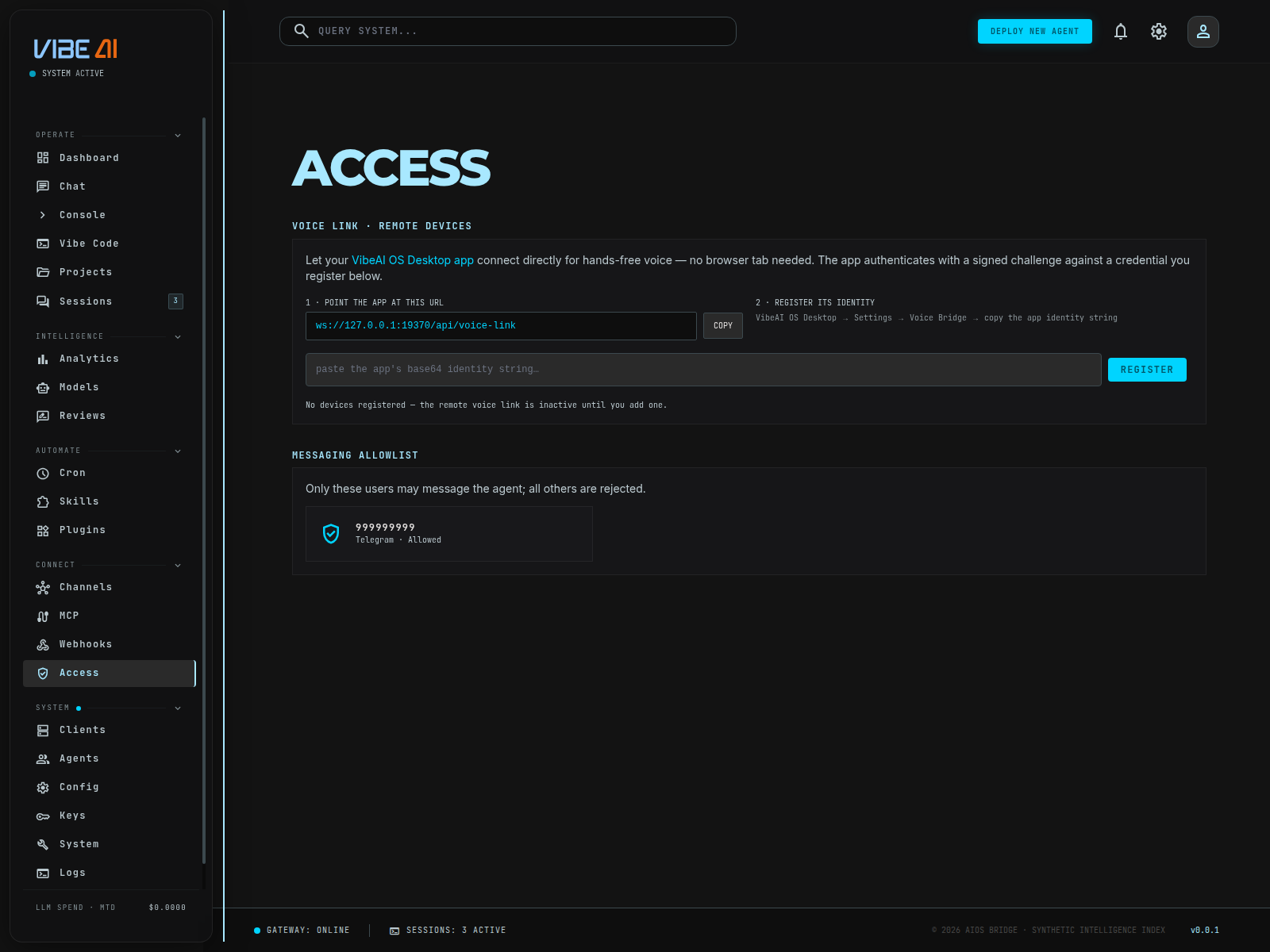
Voice Link (remote devices)
Lets the VibeAI OS Desktop app (macOS) connect directly over WebSocket for hands-free voice — no browser tab needed. The app authenticates with a signed challenge against a public key you register here; there’s no password, just device identity.
The page shows the exact wss://<host>/api/voice-link address to paste into VibeAI OS Desktop. It always shows wss://, even if the dashboard page itself happens to be loaded over plain http: (a stale bookmark, a proxy hop, direct :80 access before a redirect fires) — nginx terminates TLS for every real deployment, so wss:// is the only address that will actually complete the WebSocket upgrade against a public host. The one exception is a genuine local dev connection (127.0.0.1/localhost), which correctly gets ws:// instead.
In VibeAI OS Desktop: Settings → Voice Bridge → Copy Public Key.
Paste the base64 identity string into this page and click Register. It’s validated as a real P-256 SPKI key before being saved to ~/.aios/voice_link_keys.json — a malformed paste is rejected immediately, not silently stored.
Each registered device shows as a fingerprint (first/last 8 chars of its key) with a REVOKE button. Revoking deletes the key; that device can no longer voice-link.
Authentication is a signed challenge-response (ECDSA P-256 over
<timestamp>.<nonce>, ±120s window, nonce single-use), not a shared
secret — a registered public key can prove its identity without ever
transmitting anything reusable by an eavesdropper.
With no devices registered, the page says so plainly: the remote voice link is inactive until you add one. Voice conversations otherwise persist across app reconnects — disconnecting only detaches the app, the in-progress agent turn and its session keep running.
Messaging allowlist
The users allowed to message the agent over Telegram, sourced from
TELEGRAM_ALLOWED_USER in the secrets vault. With no
allowlist set, the page
warns that the gateway rejects all users until it’s configured — there is
no “open to everyone” mode.
Remote access to the dashboard (Tailscale)
Reaching the dashboard itself from another device — as opposed to the voice-link/messaging access above — is handled separately, via Tailscale. Web UI → System shows a Remote Access card with the live tailnet address once connected.
Both installers (provision.sh on the server, provision-macos.sh on a
desktop) support --with-tailscale: installs Tailscale, joins your
tailnet, and runs tailscale serve to front the dashboard with real HTTPS —
reachable from any of your other devices with no port-forwarding and no
public DNS.
Known trap, with a real fix: if your tailnet has no Global
Nameservers configured (https://login.tailscale.com/admin/dns),
connecting Tailscale can break DNS resolution for every normal,
non-tailnet domain on that machine — not just tailnet hostnames. This
looks exactly like a real outage (browser: ERR_NAME_NOT_RESOLVED,
“server IP could not be found”) even though nothing is actually wrong
with the server, the DNS record, or the dashboard. Both installers pass
--accept-dns=false to tailscale up specifically to prevent this —
the machine you provision keeps using its normal DNS resolver for
everything except tailnet peers, so this class of failure shouldn’t
recur on a freshly (re-)provisioned box. If you joined a tailnet
manually (outside these scripts) and hit this, either add Global
Nameservers in the admin console above, or run tailscale up --accept-dns=false yourself.
Fixing it at the tailnet level (recommended, 2 minutes, one-time) — this is the permanent fix and applies to every device on your tailnet at once, not just one machine:
https://login.tailscale.com/admin/dns and sign in.
Under Global Nameservers, click Add Nameserver.
Add 1.1.1.1 (Cloudflare). Optionally add 8.8.8.8 (Google) too, as a second one for redundancy.
Leave Override local DNS enabled — that’s what makes MagicDNS work for .ts.net hostnames, and it’s safe now that there’s a real upstream configured for every other domain.
Takes effect within seconds, no device restart needed.
Site “unreachable” or ERR_NAME_NOT_RESOLVED right after enabling
Tailscale is almost never a server problem — check Global Nameservers
above before you go looking for an outage that isn’t there.